Your phone shows full Wi-Fi bars, but a video keeps buffering. You move closer to the router. The bars still look perfect. The video still stops.
The confusing part is that those bars tell you about the wireless connection near you, not the performance of the entire journey to a website. You can have a strong local signal and still run into a slow connection elsewhere.
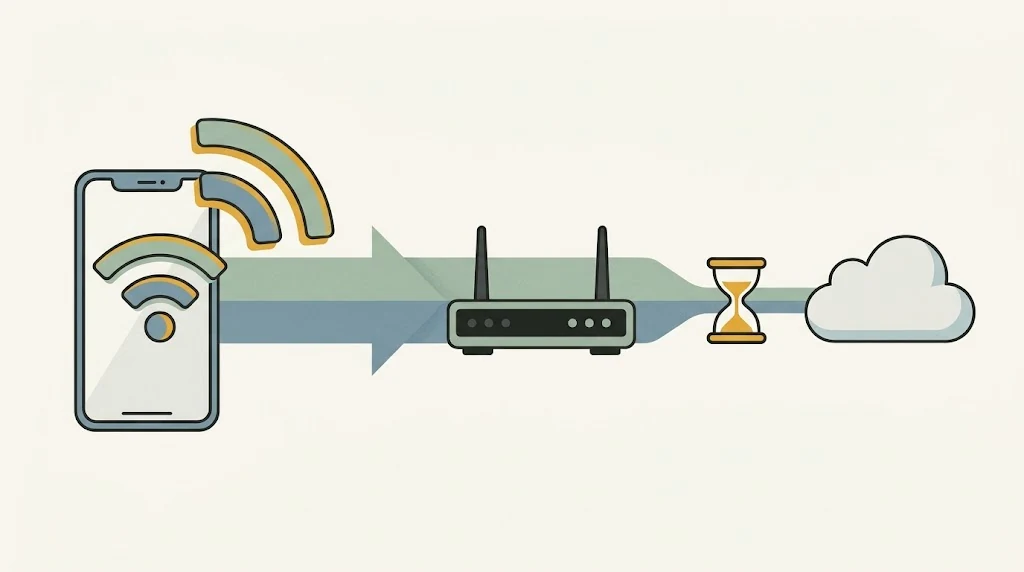
Picture a journey with several stops
A typical web request travels from your device to a Wi-Fi access point, through your home’s internet equipment and provider, and onward to the service you want. A home router often combines several jobs in one box, which makes the separate steps easy to overlook.
Think of a clear driveway leading to a busy main road. The driveway is doing its job, but the whole trip can still take longer. The bars tell you about the driveway, not the whole trip.
Google’s home Wi-Fi troubleshooting guide lists causes across that journey, including device limitations, competing traffic, equipment links and internet-provider issues. Buying a bigger plan before you know where the slowdown happens may leave the actual problem untouched.
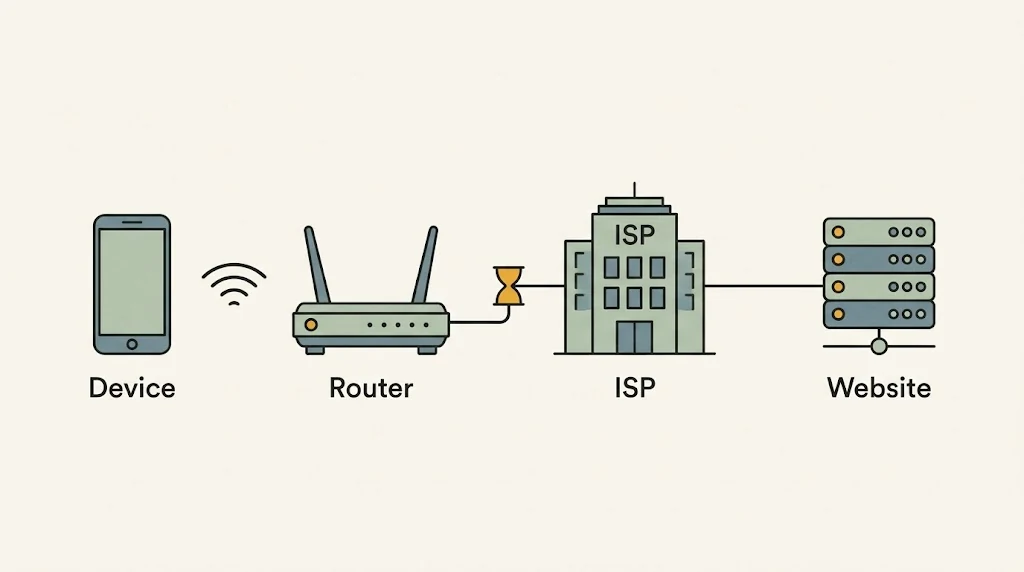
Try three comparisons before changing settings
- One service or several? Try another ordinary website or streaming service. If only one destination struggles, record that detail. It narrows the question, although it does not prove which company is responsible.
- One device or several? Try another device on the same Wi-Fi, at roughly the same time and place. If the second works normally, investigate the first device before blaming the entire connection. Microsoft includes this comparison in its Wi-Fi troubleshooting advice.
- Near the router or across the home? Repeat the same task nearby. A large improvement is a useful clue about wireless coverage or conditions, not a complete diagnosis.
Change one thing at a time. If you switch devices, rooms, apps and networks together, you may get a better result without learning why.
Make a small, fair speed-test comparison
Run a speed test using a reputable service you already trust, then repeat it under similar conditions. Note the time, device, room and whether large downloads were running. Speed tests transfer data, so avoid unnecessary repeats on a capped or metered connection.
Pause an optional large download you control and compare again. Do not interrupt someone’s work upload or security update just to improve a test result. Several busy devices can compete for available capacity, as Google’s guide explains.
If you already have a suitable Ethernet connection and know how to use it, comparing wired and wireless performance can help separate the local wireless link from other parts of the journey. You do not need to buy equipment for this first round of checks.
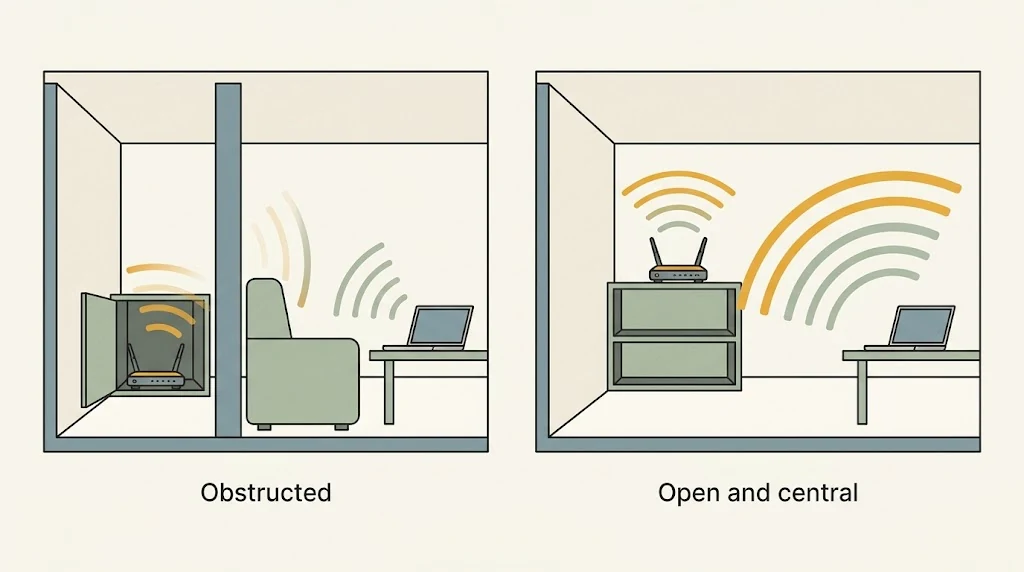
Give the router a better place to work
A router hidden behind furniture or placed far from the rooms you use may struggle to provide reliable coverage. Microsoft’s home-layout guidance explains how placement, obstacles and interference affect Wi-Fi. Try a practical, open location before assuming a newer router is necessary.
Do not start by disabling security, factory-resetting equipment or changing unfamiliar advanced settings. A normal restart and a factory reset are different actions. If a restart is needed, use the manufacturer’s instructions and warn anyone whose connection it will interrupt.
Turn “it is slow” into a useful report
A short note such as “two devices are slow near the router, on several services, every evening” gives your provider more to investigate than a screenshot of full bars. Include your comparison results and ask about known service problems.
The goal is not perfect bars. It is finding which part of the connection needs attention, without spending money on the wrong fix.
AI-generated illustrations created with Google Gemini and reviewed for this article. These are conceptual illustrations, not screenshots.